Skip to Content
Step-by-step guide

How we install applications on your vehicle’s original screen

See the procedure from start to finish, from preparation to final checks. Before the session, we confirm the connection and any accessory required for your vehicle.

TIMING AGREED AFTER ASSESSMENT · YOU AUTHORIZE EACH SESSION · SCOPE CONFIRMED BEFORE WE START
Before you start

Two things before booking

Compatibility check

You send us the make, model, year and a photograph of the screen switched on. We check the exact version of your system and tell you which functions we can adapt and which we cannot. This check costs nothing and commits you to nothing.

Only once that is clear do we give you the price and the estimated time, and only then is the appointment booked.

What you need to have ready

  • Your phoneWith internet and enough battery for the whole appointment
  • The vehicle with youParked, handbrake on and the screen switched on
  • A stable connectionWi-Fi or mobile data that will not drop
  • One accessory, only if your vehicle needs itWe tell you in advance and send you a photo of it. Most vehicles do not need it
Compatibility

The vehicles we can work with

We work with a range of Chinese makes and models. The same model can use different screen and software versions. That is why, before every installation, we check the model, year, system version and a photograph of the screen free of charge.

Make
Models
Status
BAW
212
Tested by GleximAuto
Dongfeng
Z9
Tested by GleximAuto
Dongfeng
Aeolus
Tested by GleximAuto
Jetour
T1 · T2 · X70 · Dashing
Compatible · prior verification
Chery
Tiggo 7 · Tiggo 8 Pro · Arrizo
Compatible · prior verification
BYD
Song Plus · Yuan · Han · Dolphin
Compatible · prior verification
Haval · GWM
Jolion · H6 · Poer
Compatible · prior verification
Other Chinese makes
Changan · GAC · MG · Geely · Foton and others
We’ll evaluate your model

Tested by GleximAuto means we have already carried out the procedure successfully on at least one unit of that model. The exact version is always confirmed before the appointment.
The procedure

Six steps, start to finish

Steps 1 to 4 are yours and take a few minutes. Step 5 is ours, with you watching. Step 6 we close together.

Process preview
Step 1 of 6

You open GleximAuto

We send you the link to the connection app. You install it on your phone like any other app and open it. That is the only thing you have to prepare before the appointment.

Open GleximAuto to start a private, secure session.
Step 2 of 6

You enter your private code

GleximAuto sends you a code on WhatsApp that is valid only for that appointment and that vehicle. You type it into the app and the session opens.

Enter the session code GleximAuto sends you on WhatsApp.
Step 3 of 6

You confirm and authorise the session

You check that the vehicle and the service are the right ones. You park the vehicle, put the handbrake on and authorise temporary access. Without that authorisation there is no connection at all.

Check the vehicle and authorise temporary access for the installation.
Step 4 of 6

You connect the vehicle

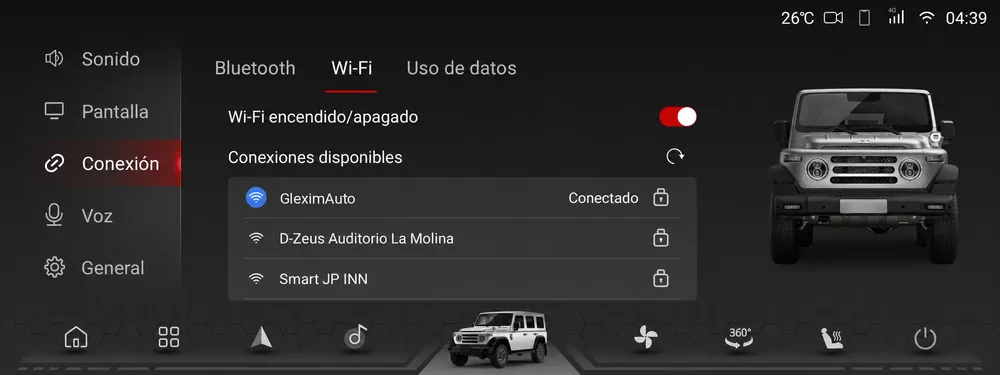
You usually connect through Wi-Fi or your phone’s hotspot. Use a USB cable only when GleximAuto tells you before the appointment.

Choose Wi-Fi or hotspot; use USB only if GleximAuto tells you to.
Step 5 of 6

We install and we check

GleximAuto installs and configures what was agreed. You can follow the stages from the app and, when it is done, we go through the apps and functions together before closing.

Follow the installation stages without closing the app or switching the vehicle off.
Step 6 of 6

We finish and close the session

The app confirms that the installation is finished, that the settings were verified and that the remote session is closed. Afterwards you can uninstall the app.

GleximAuto confirms the installation and the closing of the remote session.
Step 4 of 6
Real work

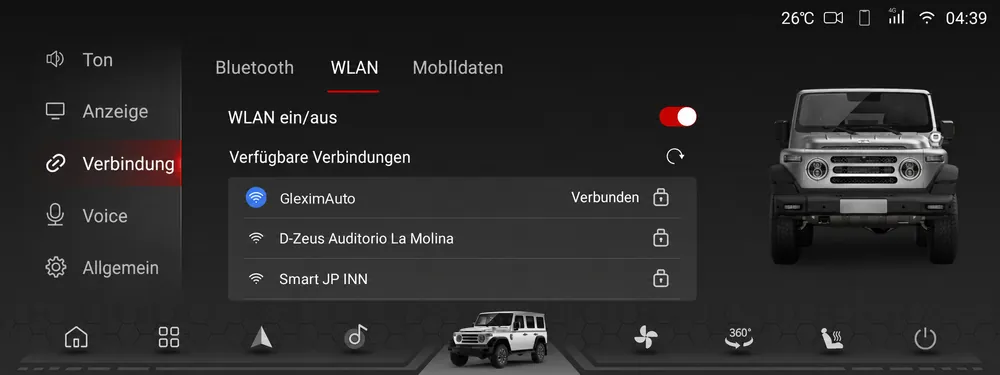
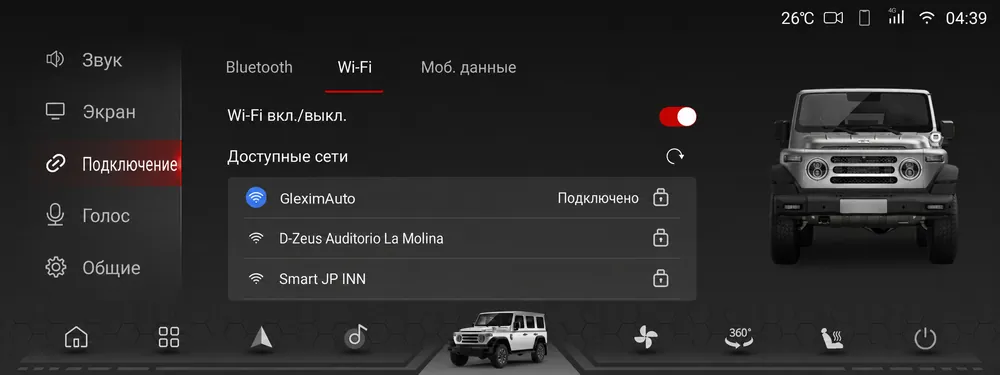
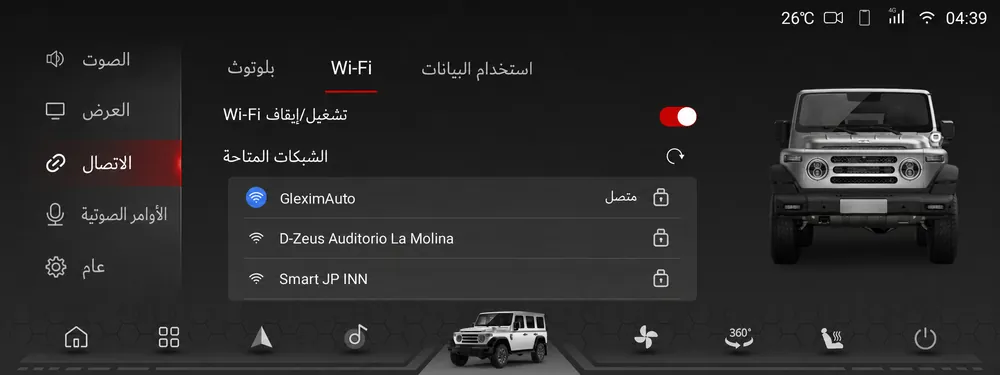
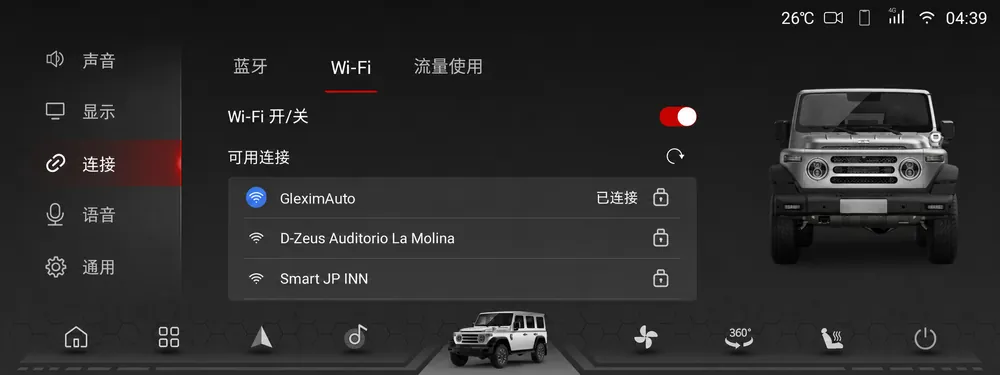
Real result on a BAW 212

These are real screens from the same vehicle before and after the work carried out by GleximAuto. Pick a language to compare the system.

BAW 212 screen in Chinese, as it comes from the factory BAW 212 screen in Spanish BAW 212 screen in German BAW 212 screen in Russian BAW 212 screen in Arabic
View in

中文 is how the vehicle arrives from the factory. The other languages are the result of the work on that same BAW 212.

Safety and privacy

What stays under your control throughout

You open the session and you authorise it

Outside the appointment there is no open connection to your vehicle.

You see what we see

Throughout the job you have the same screen in front of you, on your phone.

Your own device confirms the closing

When it ends, the session-ended notice appears on your own screen.

We review which changes can be undone

Before we start, we explain which changes can be undone and which procedure applies to your version.

We do not ask for your personal passwords

The installation does not need the passwords to your accounts. If something requires your personal login, you are the one who opens it.

Permanent services are agreed separately

Telemetry and GPS do need a connection that stays open over time. They are not part of the installation and are only enabled if you ask for them.

Common problems

If it does not work the first time

These checks help address common issues. If your case needs further review, we will explain the next step.

The vehicle screen cannot find my phone’s network

Turn your phone’s hotspot off and on again, and on the vehicle screen press the button that refreshes the list of networks. If your phone lets you pick the band, try 2.4 GHz: many factory screens cannot see 5 GHz networks.

The connection drops in the middle of the session

It is almost always the signal, or the phone locking itself. Leave the phone unlocked and near the vehicle, and authorise the session again: we pick up exactly where we left off, without starting over.

The installation finished but I cannot find an app

It is usually in the app menu rather than on the home screen. Tell us during step 5 and we will put it wherever you want it to appear.

My vehicle will not accept the Wi-Fi connection

We tell you before the appointment, send you a photograph of the adapter and cable you need, and tell you the port. Nothing on the vehicle has to be taken apart.

The session is over and I want something removed

Contact us and we will review your case. We will explain whether the installation needs adjusting or a change can be undone, depending on your system version and the agreed scope.

Can I ask you to stop in the middle of the job?

Yes, at any moment and with no explanation needed. You close the session from your phone and the connection ends right there.

Ready to have your vehicle checked?

The compatibility check costs nothing. Send us the make, model, year and a photo of the screen switched on, and we will tell you what can be adapted, what it costs and how long it takes before you pay anything.